Service Schedule
With MyFleet, users can now add service parameters per truck and then get alerted in real time when the next service is due. The user can then update their trucks’ service details when service is completed, with the system automatically showing when the next service is.
Tripplo also helps the user to view the service history for the truck across all its completed services. We know how easy it is to forget to change the oil on time or sending in trucks for service on time, risking losing warranty. We're helping users to avoid engine and other possible problems by logging and tracking their trucks’ service maintenance history.
TABLE OF CONTENTS:
- 1. Add a truck service schedule
- 2. View full list of all scheduled services
- 3. Update truck mileage
- 4. Edit service parameters
1. Add a truck service schedule
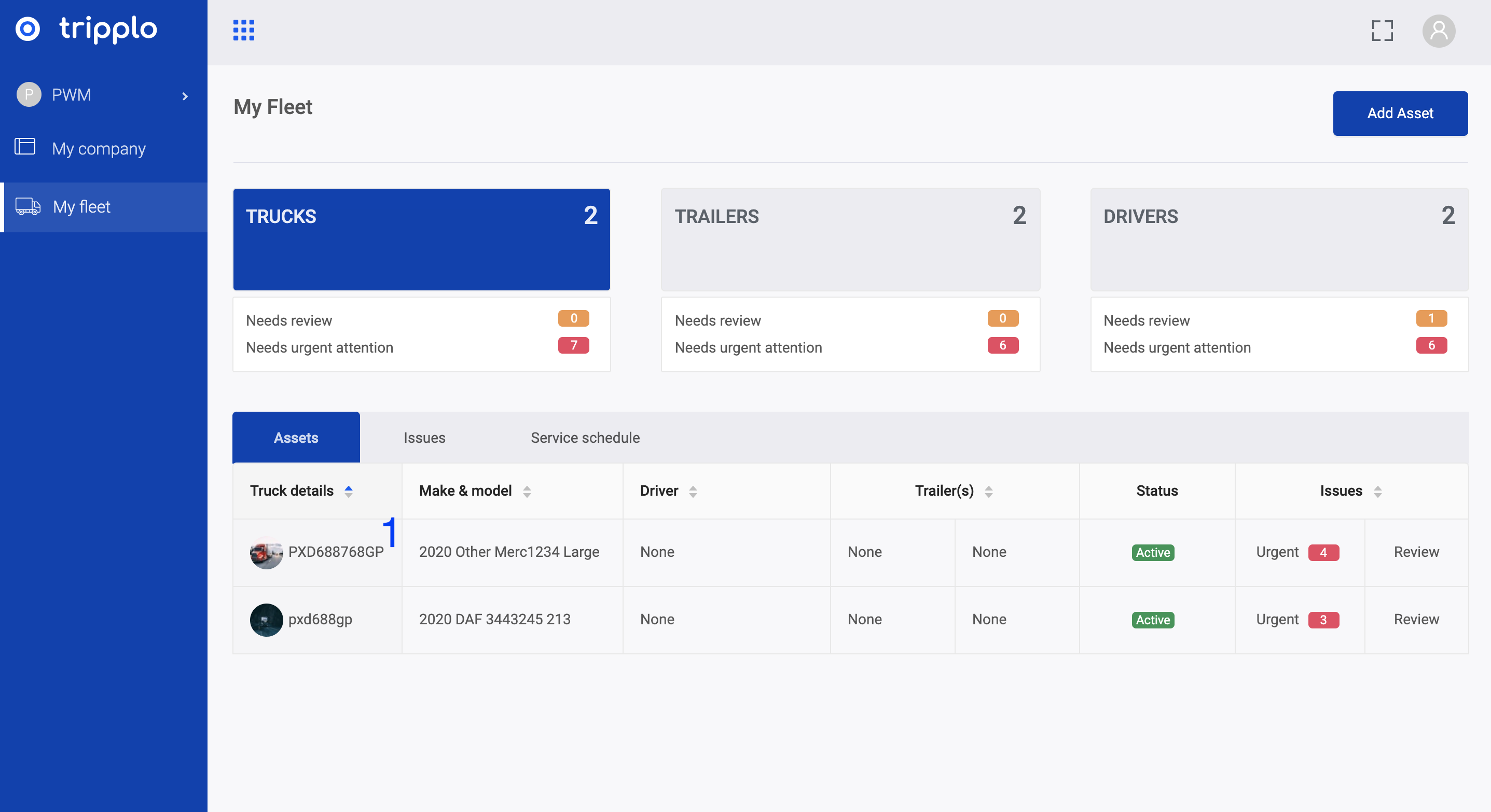
Step 1: Login to your account, and click My Fleet
Step 2: In the drop down list of all your trucks below, click the truck that needs to be updated
Figure 1:
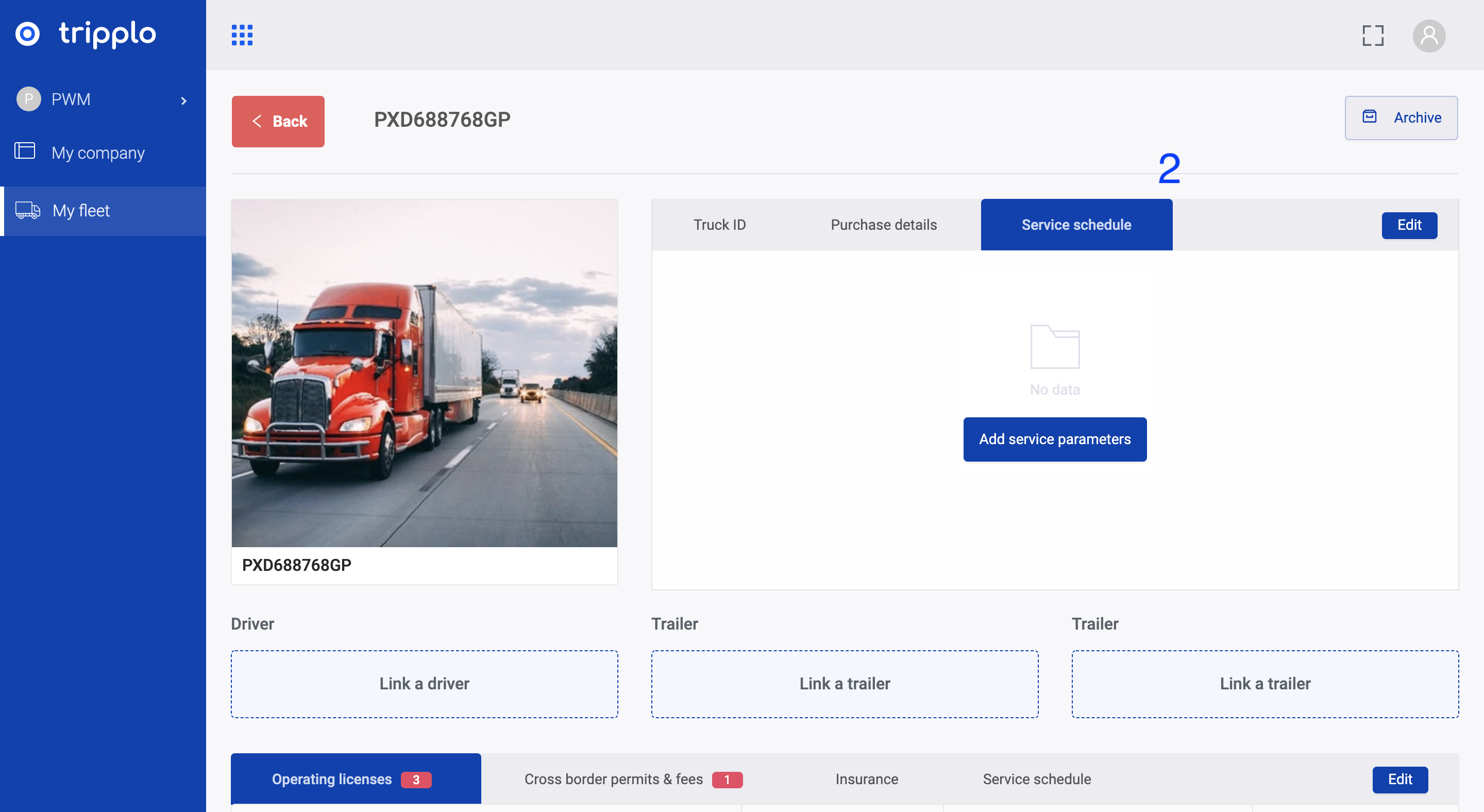
Step 3: In the summary box at the top right, click "Service Schedule", then click the "add service parameters" button
Figure 2:
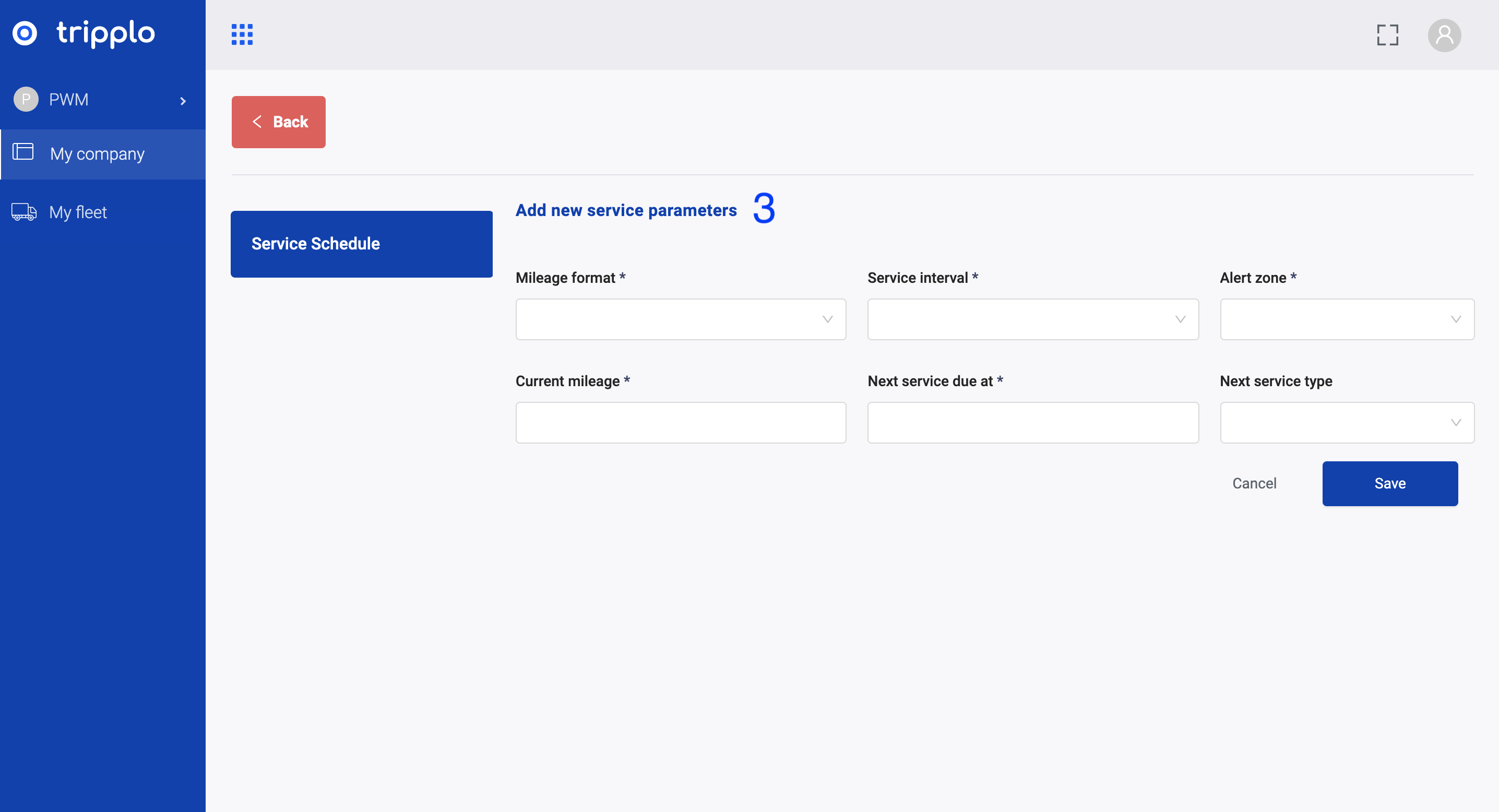
Step 4 : Add all the required truck service parameters/information, then click save
Figure 3:
2. View full list of all scheduled services
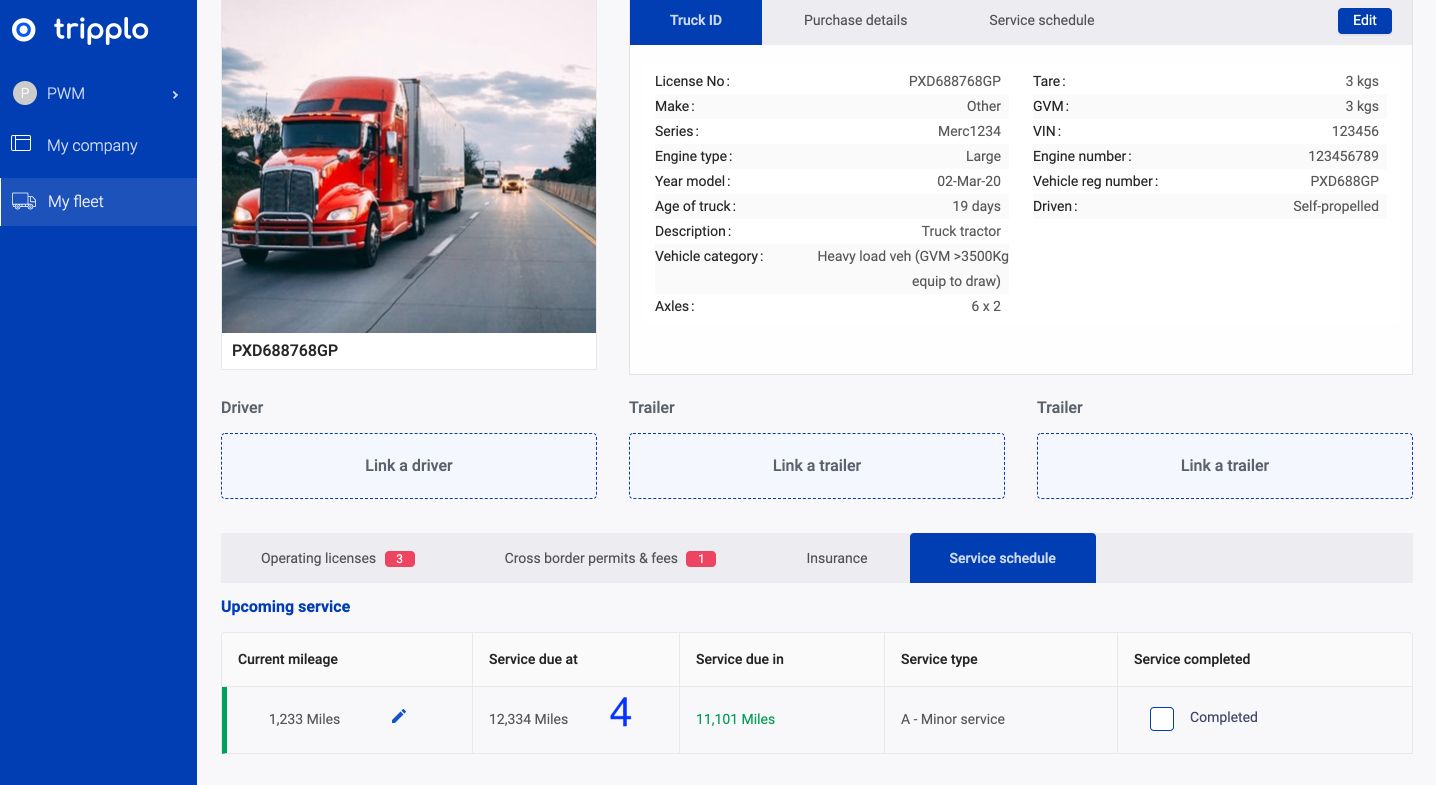
Step 5: In the bottom section of the trucks' page, you will see the created truck service schedule in the "Upcoming Services" drop down list below
Step 6: Anticipate active alerts which will inform you when your truck service is due
Step 7: After the truck has been serviced, click the "complete" button to update accordingly
Figure 4:
3. Update truck mileage
Step 8: In order to update the truck's mileage, you will fill out the schedule form with all the update information for your record keeping, then click save
Figure 5:
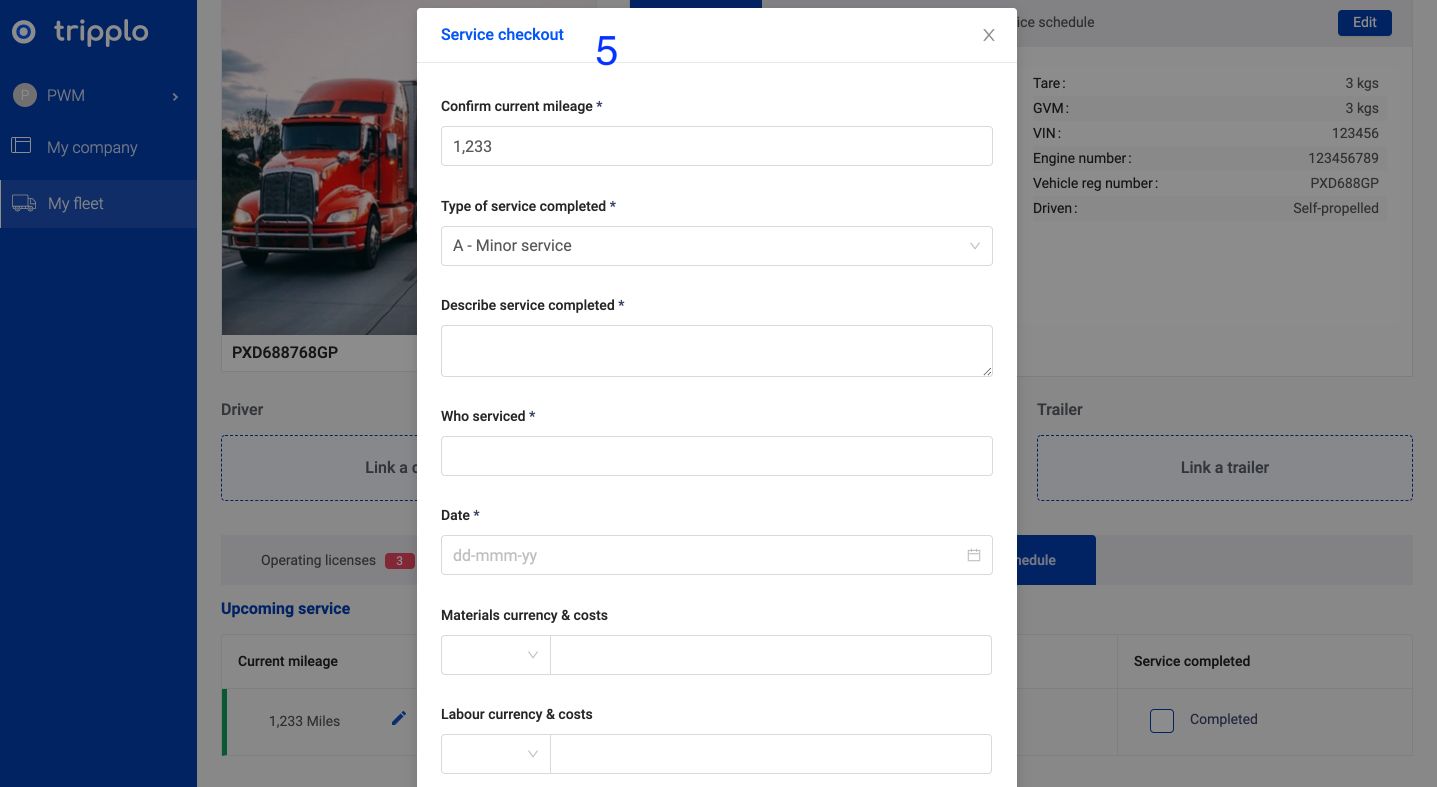
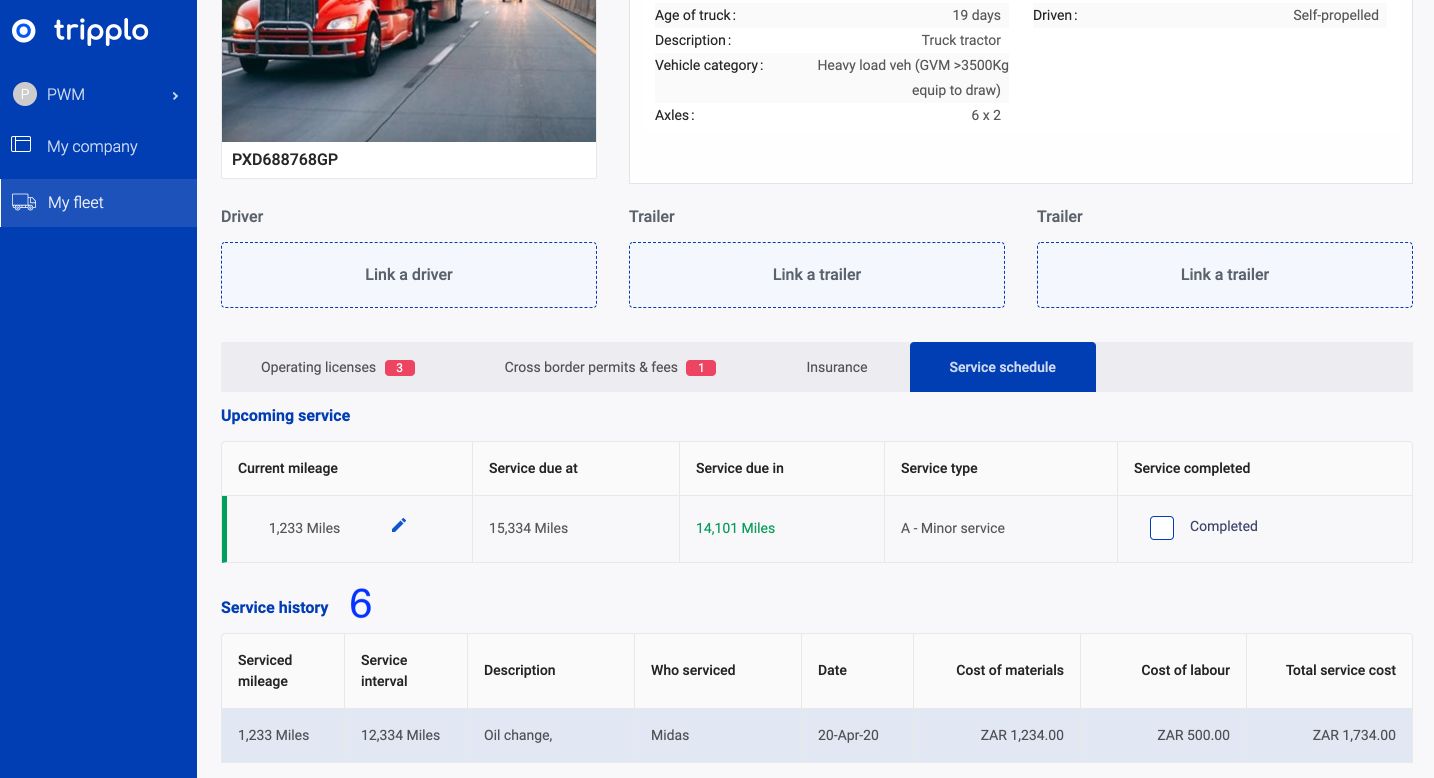
Step 9: Once you have completed the schedule, it will appear in your "Services history" list
Step 10: Congratulations, you have successfully completed your first truck service schedule. Now repeat this for all your trucks.
Figure 6:
3. Edit service parameters
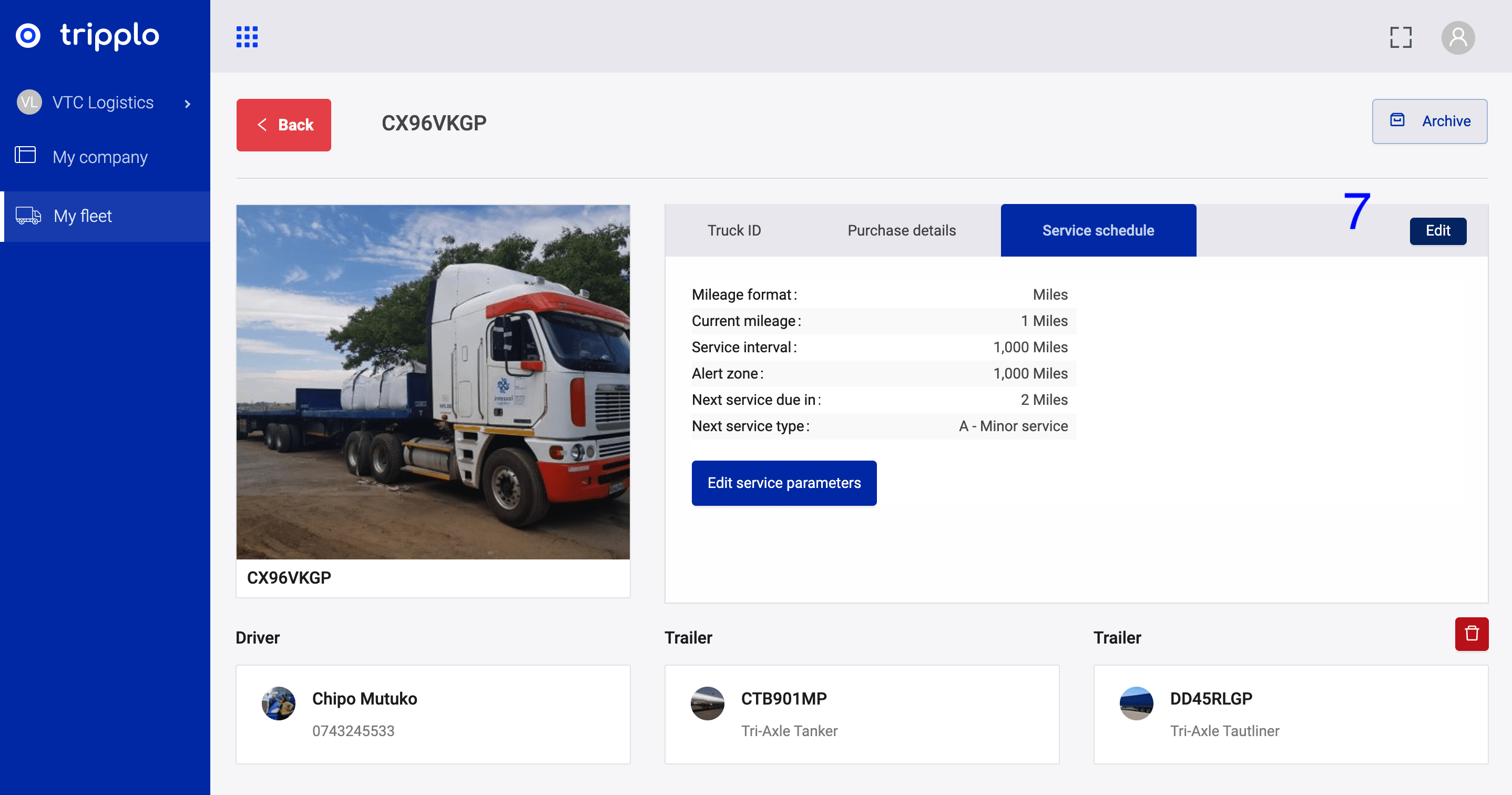
Step 11: Should you wish to edit the service parameters, click "MyFleet", then select the truck that you wish to update
Step 12: In the top right corner, click the "Service Schedule" tab, then click the "edit button". Input the changes you wish to make then click save. Your changes will be updated in the drop down list.