My Fleet seamlessly stores and manages information of a transporter’s trucks, trailers, and drivers all in one safe and consolidated view. As a transport owner, you and your fleet management operators will no longer need to open multiple tools, documents or folders to preview and manage key fleet information. With My Fleet, you will also receive real-time alerts that notify you of any document, permit or fee expiration, thus saving you time, money and reducing compliance headaches.
TABLE OF CONTENTS:
1. Archive a Truck
Step 1: Login to your account
Step 2: On the left blue column, Click “My Fleet”
Step 3: Ensure that you've landed on the dashboard showing an information list of "Trucks"
Step 4: Sift for the Truck that you wish to delete/archive
Step 5: Click on the Truck
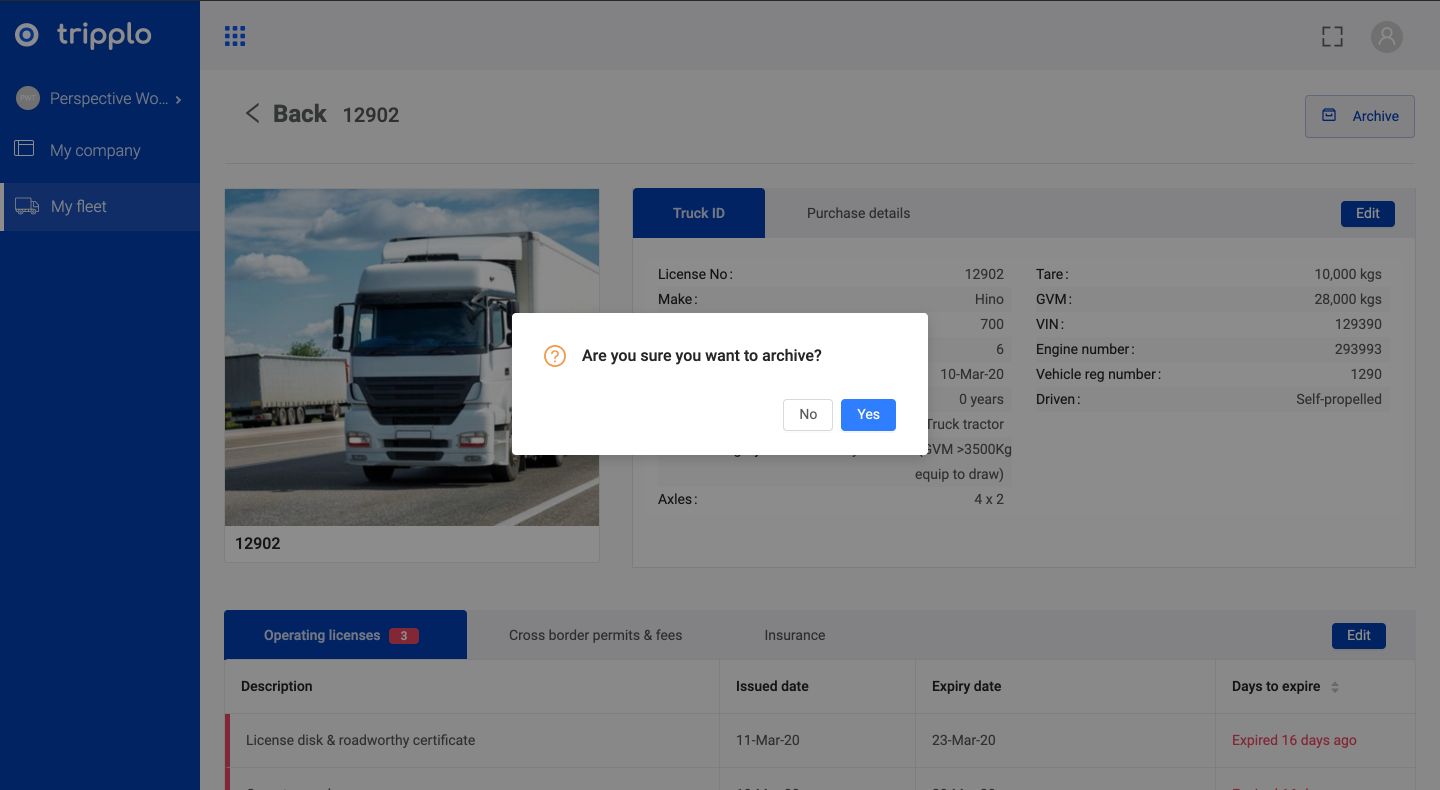
Step 6: On the top right corner, click "Archive". A question will pop up. If you are sure, click "yes"
Step 7: Congratulations. You have successfully removed the Truck from your dashboard.
FIGURE 1:
2. Archive a Trailer
Step 1: On the left blue column, Click “My Fleet”
Step 2: Ensure that you've landed on the dashboard showing an information list of "Trailers"
Step 3: Sift for the Trailer that you wish to delete/archive
Step 4: Click on the Trailer
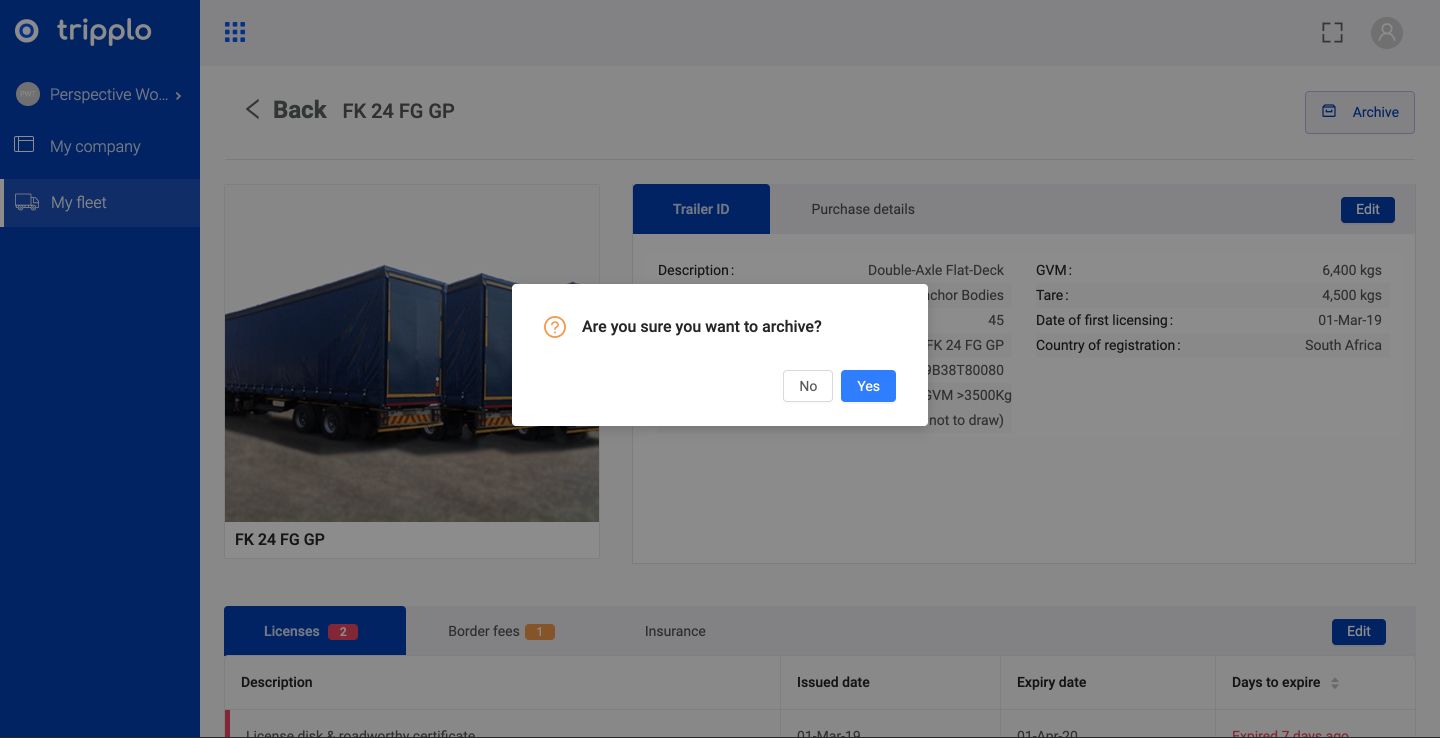
Step 5: On the top right corner, click "Archive". A question will pop up. If you are sure, click "yes"
Step 6: Congratulations. You have successfully removed the Trailer from your dashboard.
FIGURE 2:
3. Archive a Driver
Step 1: On the left blue column, Click “My Fleet”
Step 2: Ensure that you've landed on the dashboard showing an information list of "Drivers"
Step 3: Sift for the Driver that you wish to delete/archive
Step 4: Click on the Driver
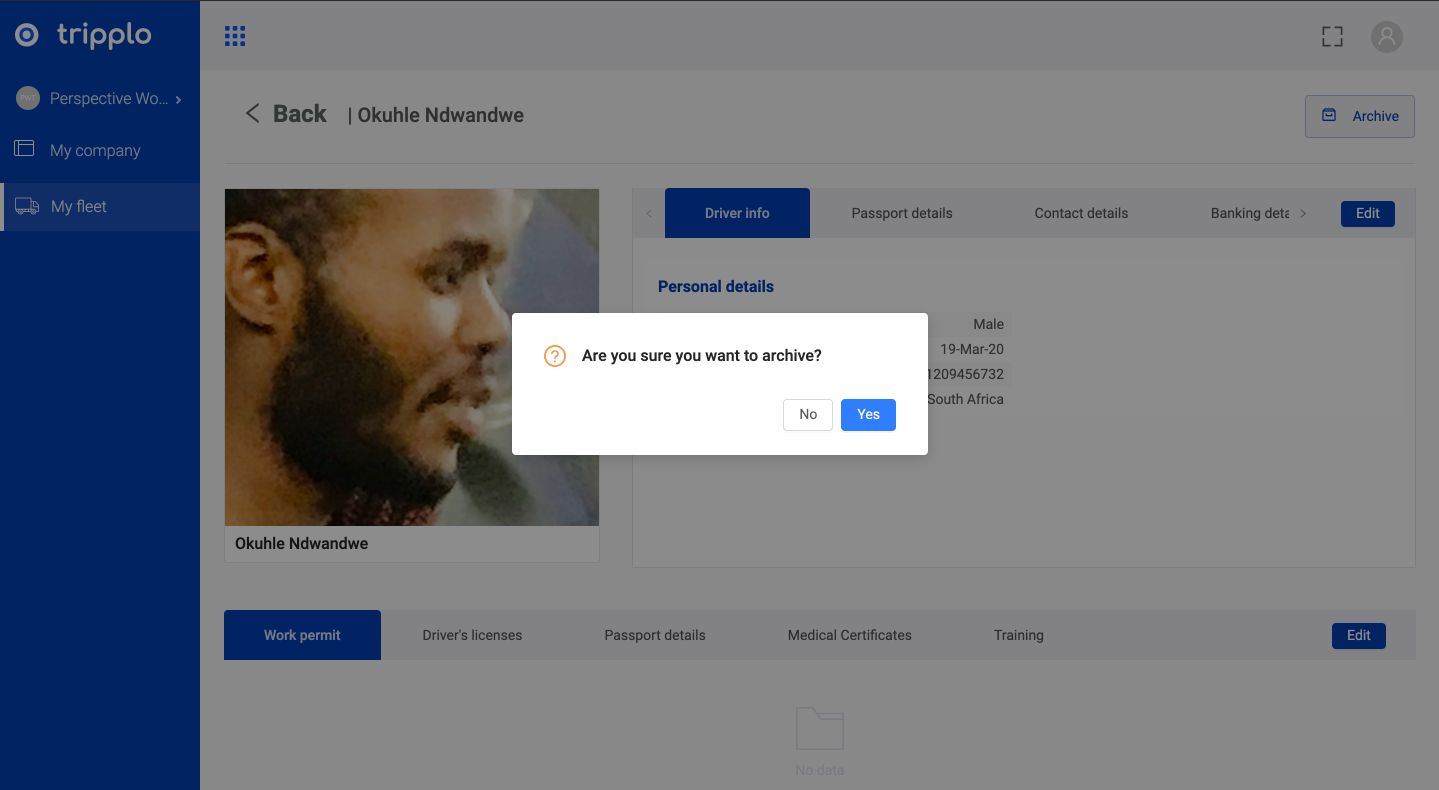
Step 5: On the top right corner, click "Archive". A question will pop up. If you are sure, click "yes"
Step 6: Congratulations. You have successfully removed the Driver from your dashboard.
FIGURE 3: