Users on Tripplo can now link or associate a truck, with a trailer, and with a driver as a single moving unit. This allows for easy management and tracking of linked assets to ensure driver accountability.
Prerequisite: You can only link TWO DIFFERENT trailers and ONE driver. If you select the same trailers, the system will make you aware of this in the form of an error message.
TABLE OF CONTENTS:
1. Associate assets
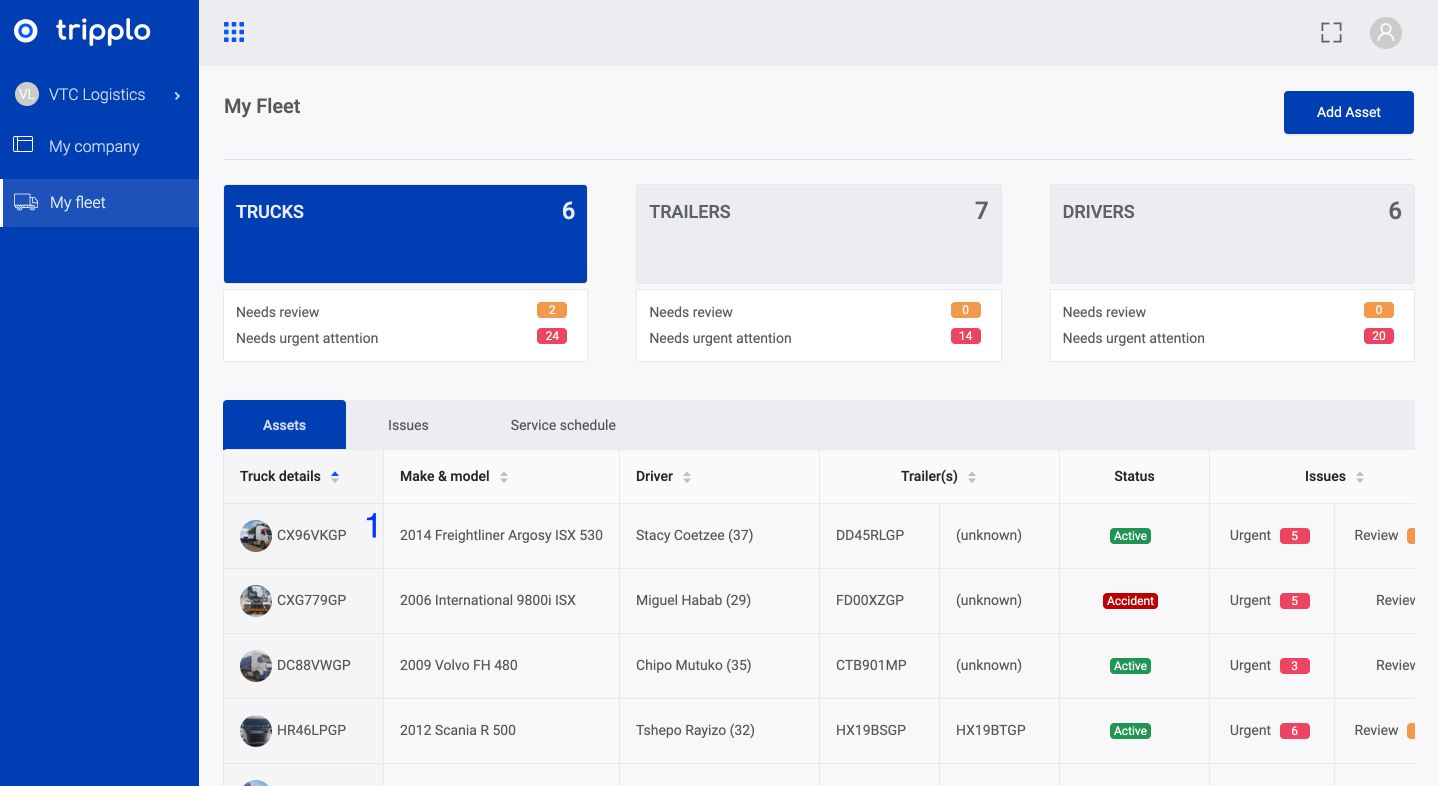
Step 1: Login into your Tripplo account and click the MyFleet tab in the blue panel on the far left
Step 2: Choose the trucks section, then in the drop down list of your trucks, choose the one that you want to link with a particular driver and trailers
Figure 1:
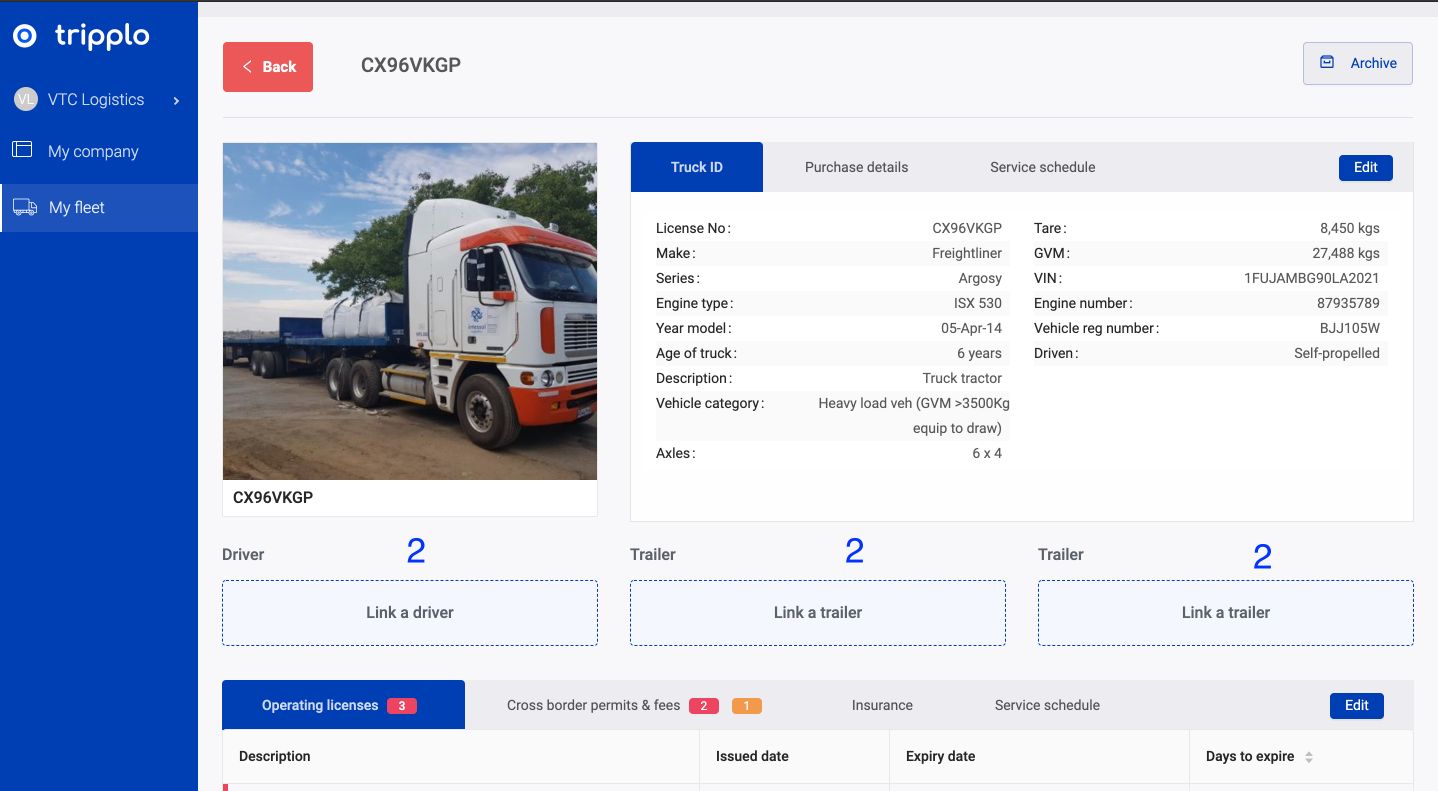
Step 3: You will land on the truck summary information page
Step 4: You will see 3 asset association options, click the main asset (e.g. truck) that you want to link
Figure 2:
Step 5: Complete the required information by linking the respective driver and trailer(s)
Figure 3:
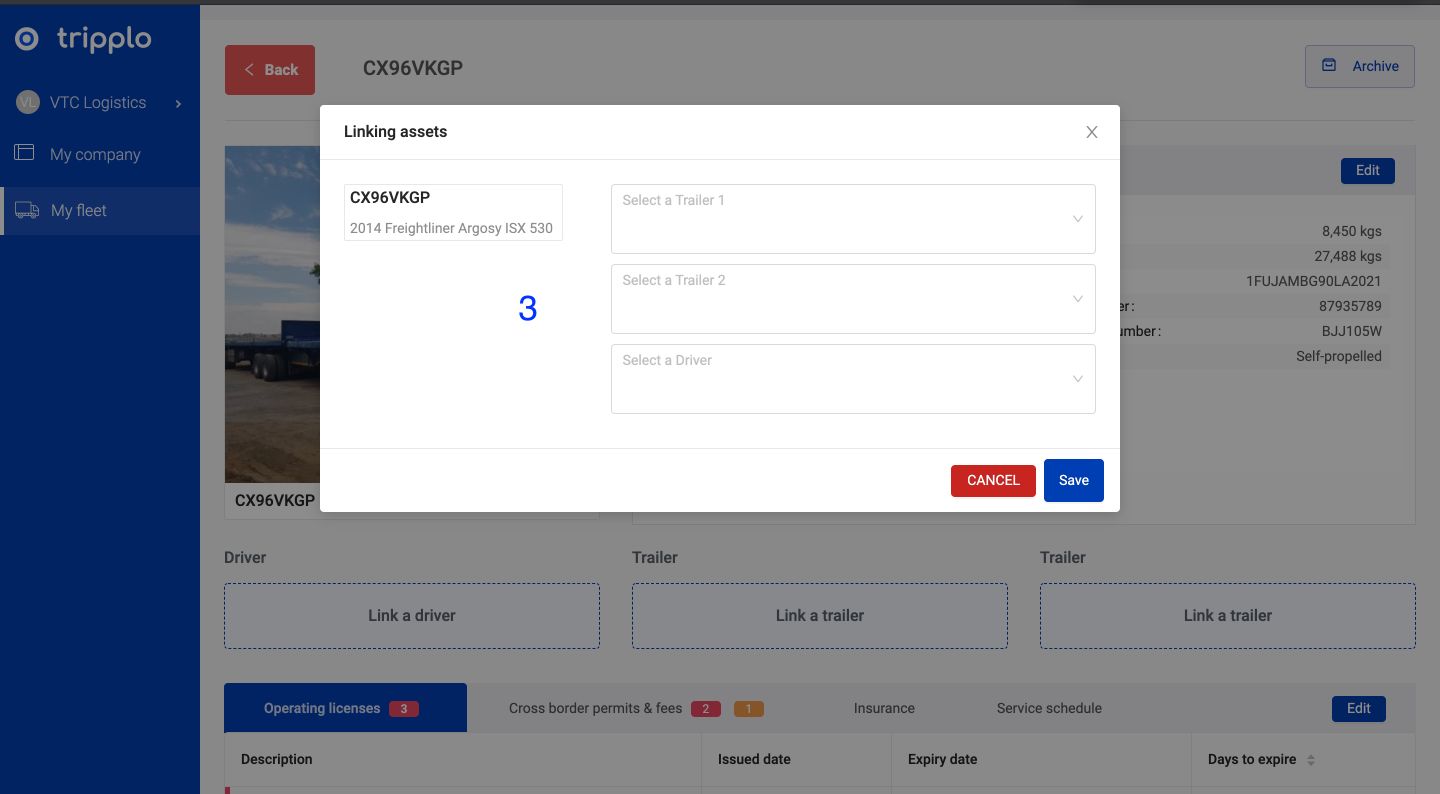
Step 6: You can only link two different trailers and one driver. If you select the same trailers, the system will make you aware of this in the form of an error message
Figure 4:
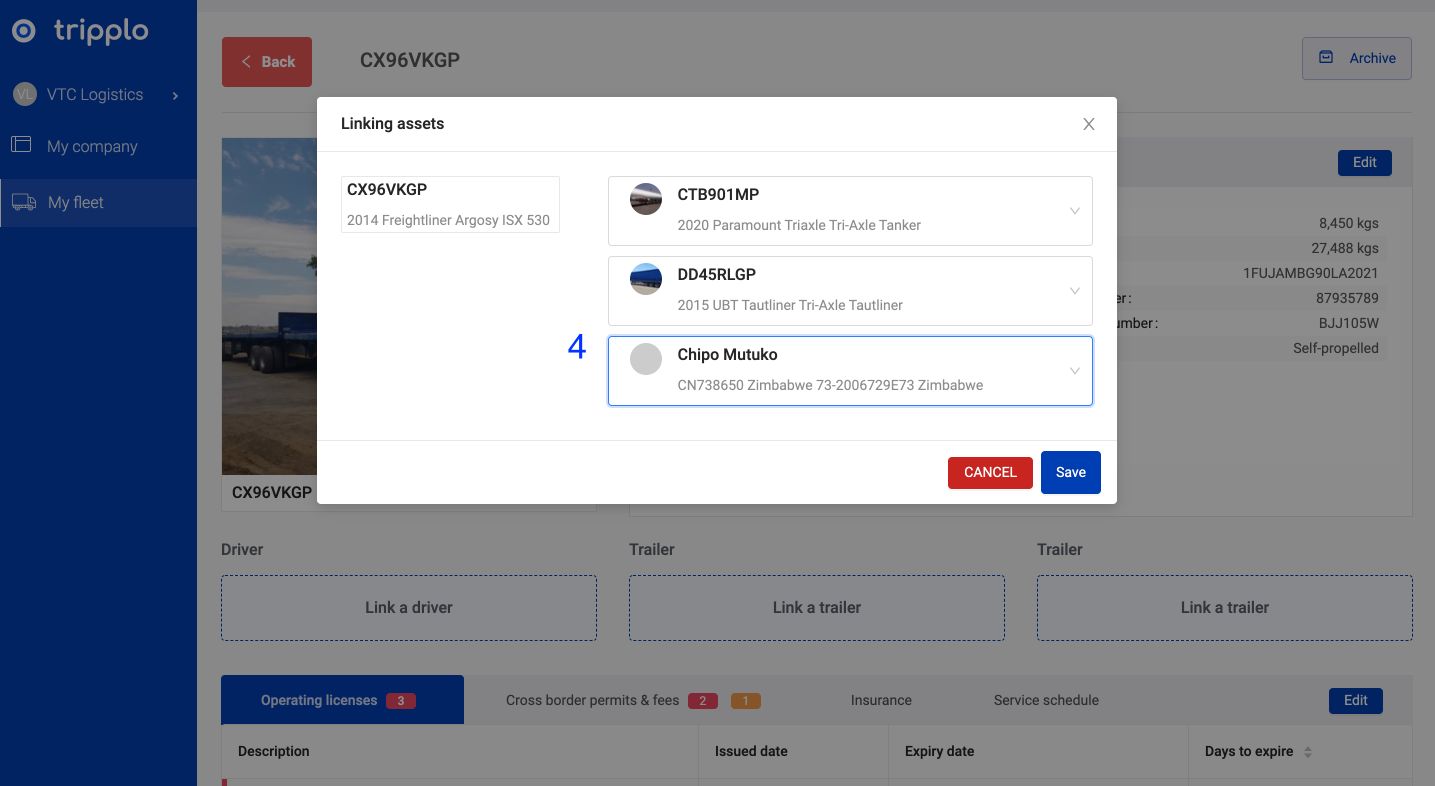
Step 7: Your associated assets will appear in your truck's summary page
Figure 5:
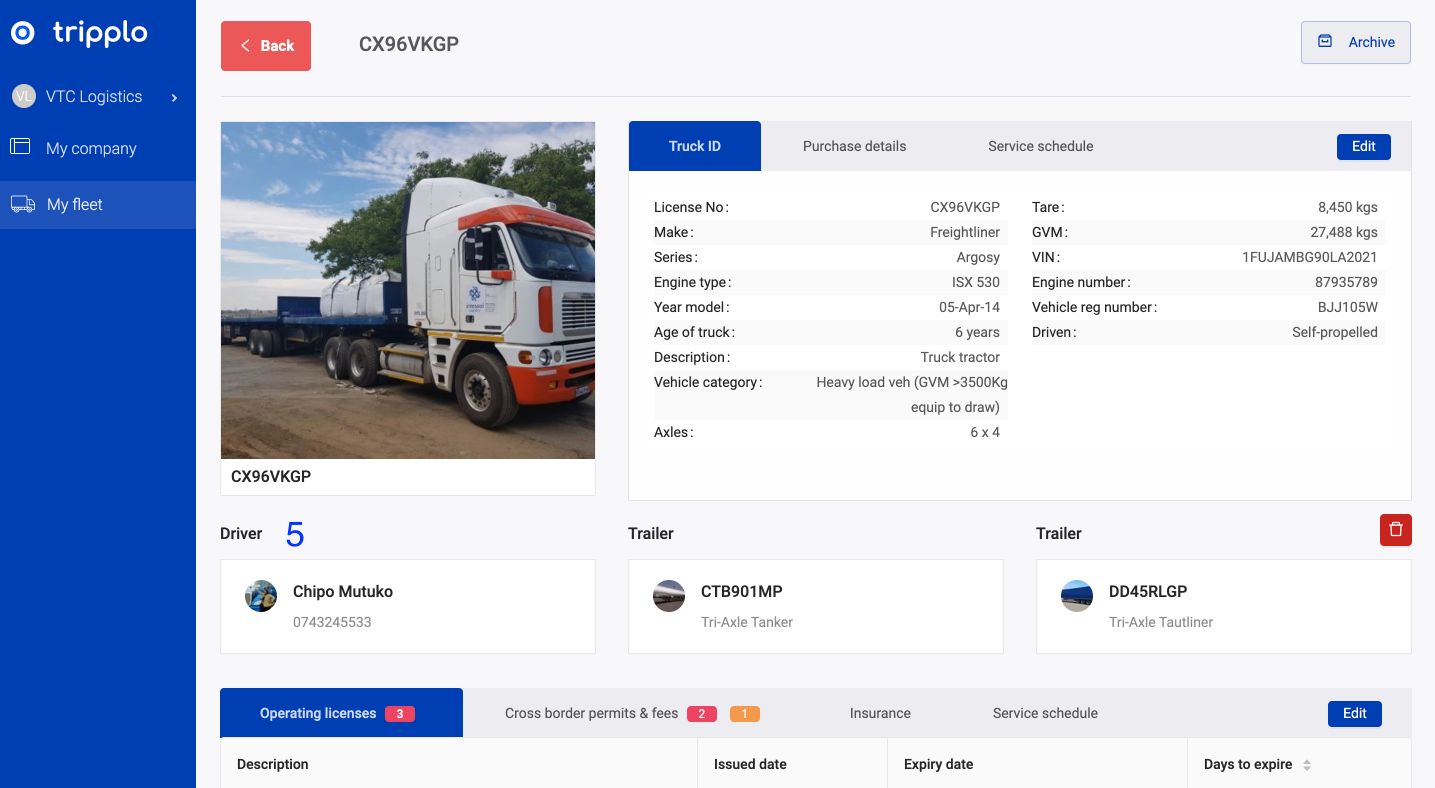
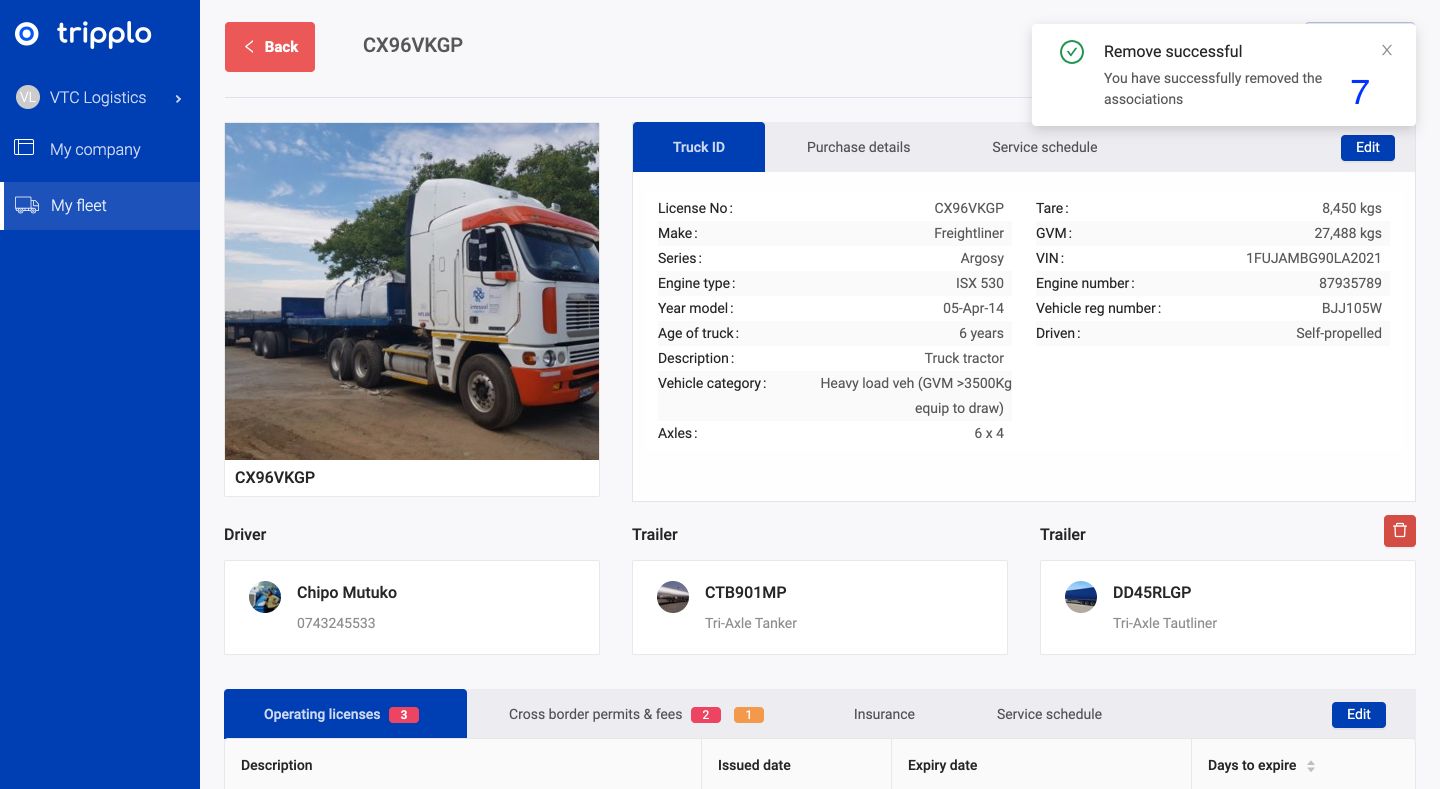
Step 8: You will get a message alerting you of the successful delinking of your assets. You should hard refresh your screen for the summary page to update
Step 9: Repeat this process from step 1 to do this for all your other trucks
2. Delete asset associations
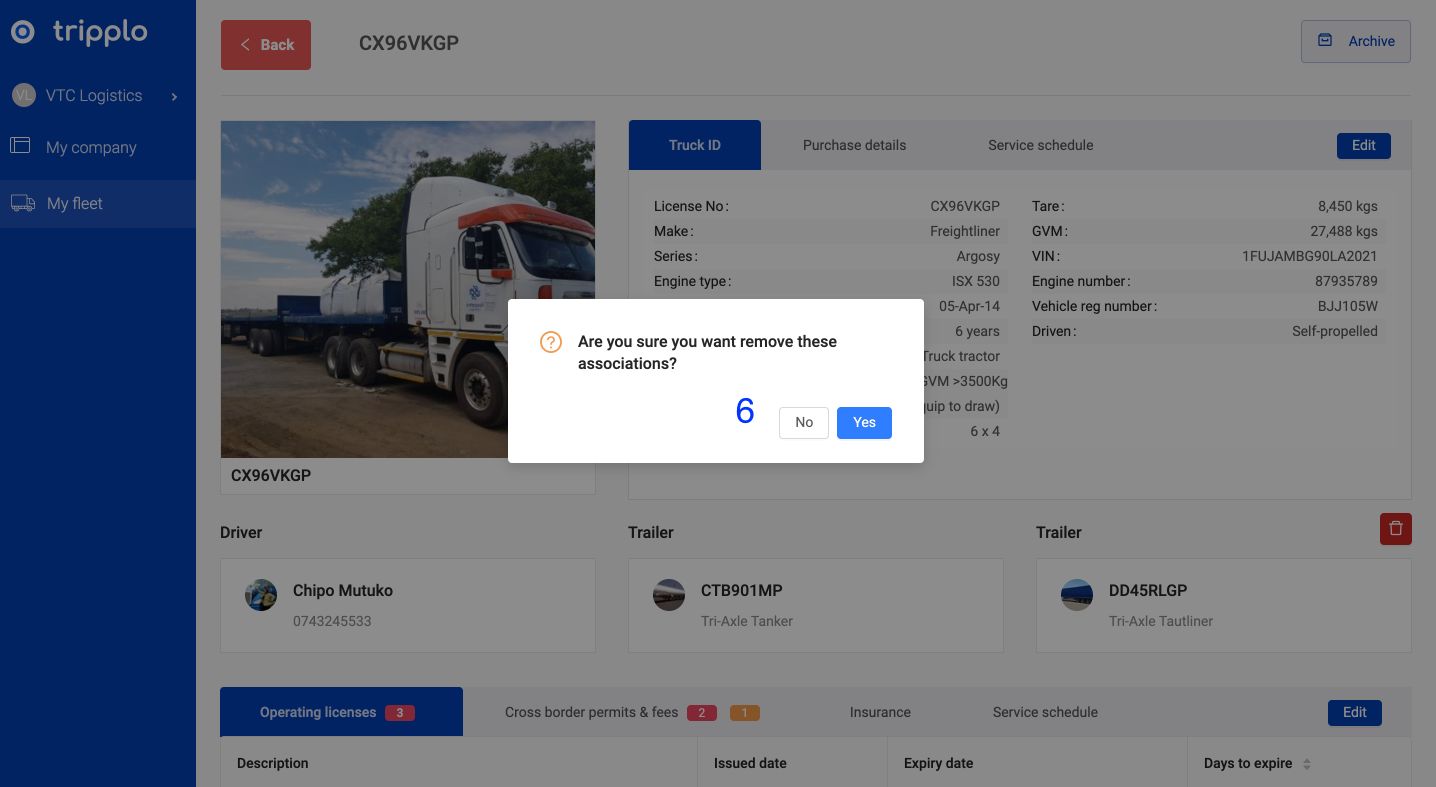
Step 10: If you have made a linking mistake, or you wish to de-link or delete your associated assets, you can delete the linkage by clicking the red "dustbin" button to de-link/delete. You will be prompted with a message to confirm your decision
Figure 6: