My Fleet seamlessly stores and manages information of a transporter’s trucks, trailers, and drivers all in one safe and consolidated view. As a transport owner, you and your fleet management operators will no longer need to open multiple tools, documents or folders to preview and manage key fleet information. With My Fleet, you will also receive real-time alerts that notify you of any document, permit or fee expiration, thus saving you time, money and reducing compliance headaches.
TABLE OF CONTENTS:
- 1. Trailer Identification
- 2. Operating Licenses
- 3. Other Operating permits
- 4. Purchase Details
- 5. General Insurance
- 6. Tracking Unit
1.Trailer-Identification
Step 1: Login to your account, and make sure you have your statutory documents ready.
Step 2: On the left blue column, Click “My Fleet”.
Step 3: On the top right corner, Click “Add Asset”
Step 5: Click “Trailer”
Step 6: In left panel on the form, click a tab named “Trailer Identification”.
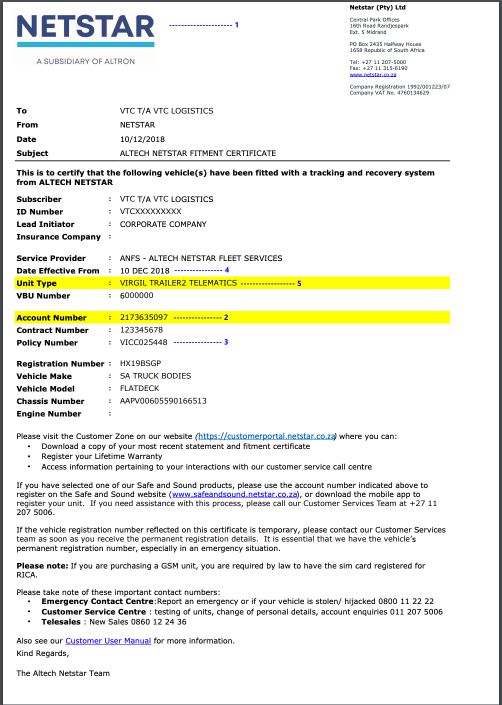
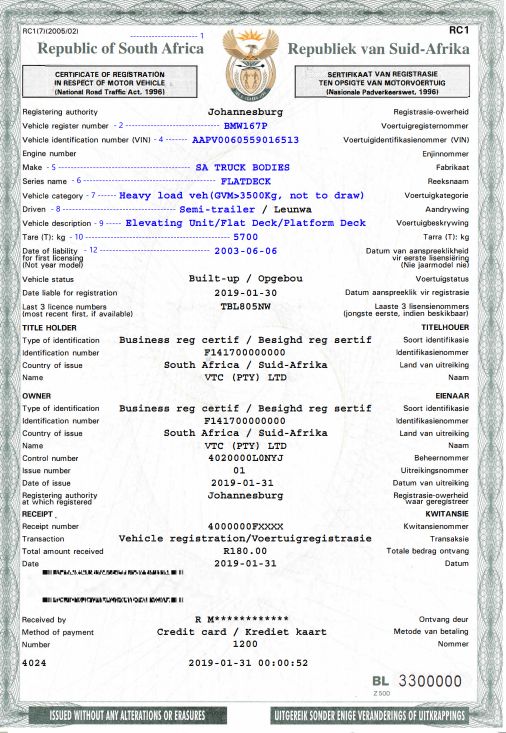
Step 7: Follow the steps highlighted in the screenshots [Figure 1 and Figure 2] to add the required information
Step 8: Click Save
Step 9: Now you will see a list of the information added in the alerts/notification dashboard
FIGURE 1:
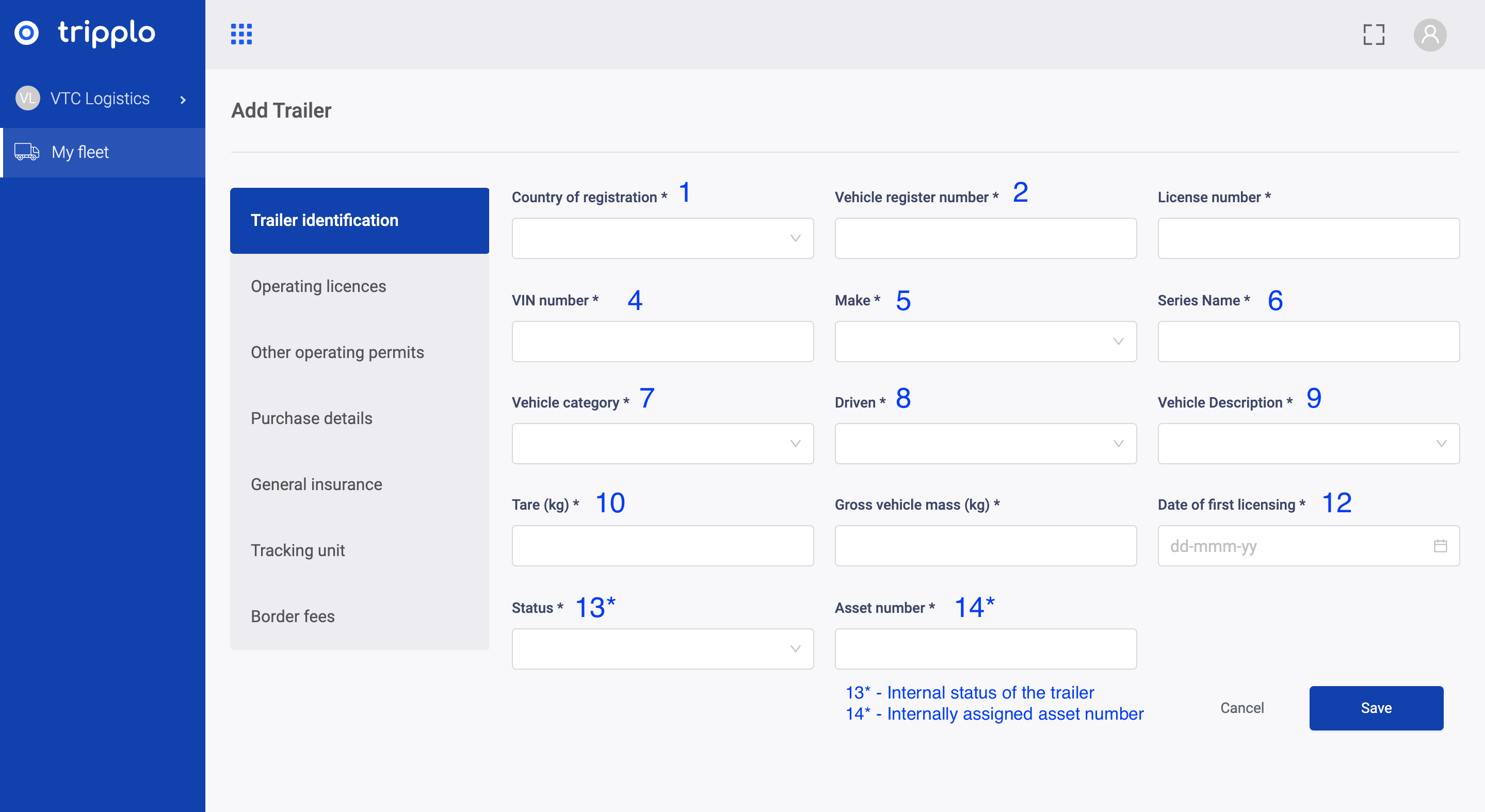
FIGURE 2:
2.Operating Licenses
Step 1: On the top right corner, click edit
Step 2:In left panel on the form, click a tab named “Operating Licenses”.
Step 3: Follow the steps highlighted in the screenshots [Figure 3 and Figure 4] to add the required information
Step 4: Click Save
Step 5: Now you will see a list of the information added in the alerts/notification dashboard
FIGURE 3:
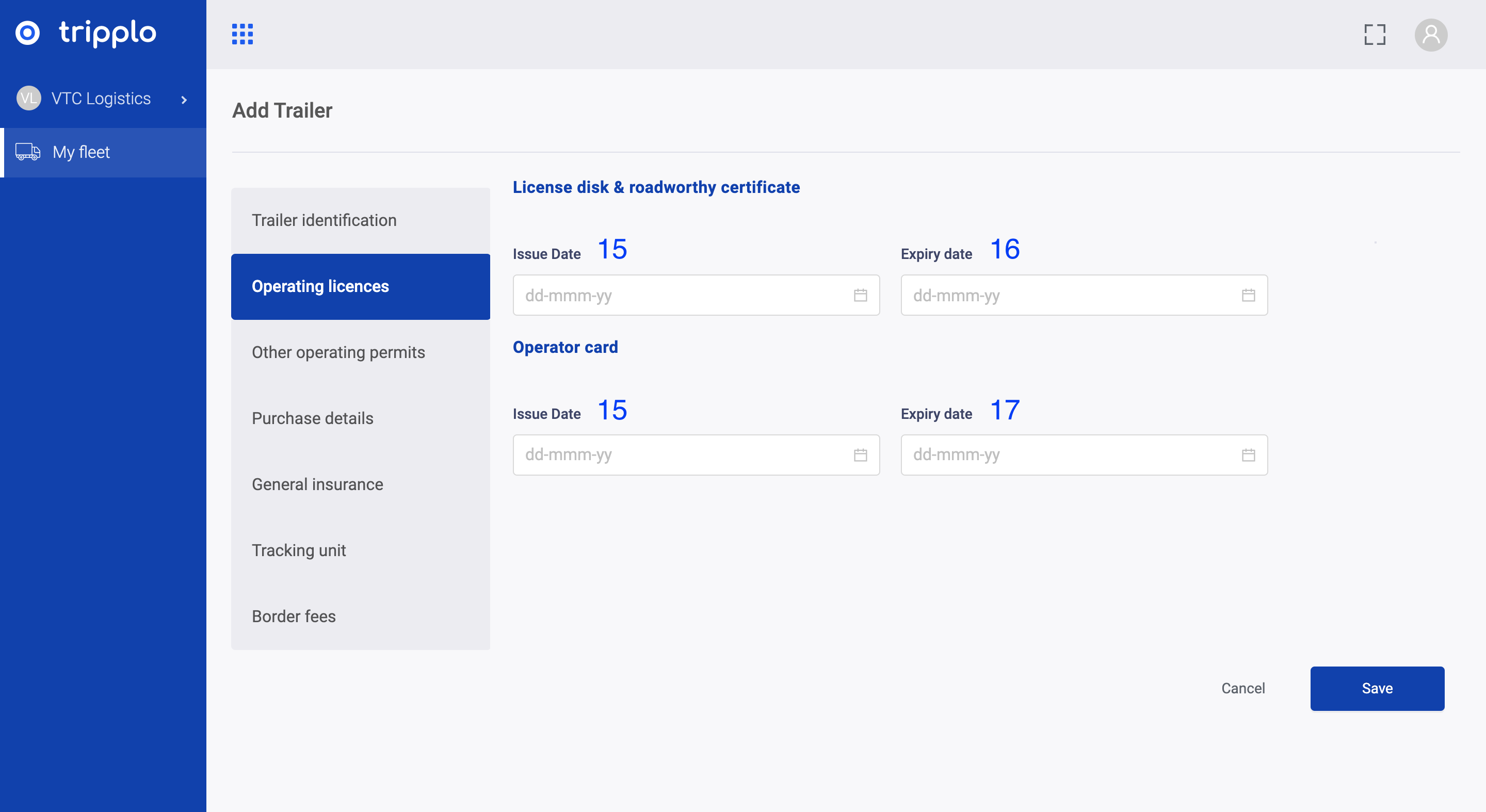
FIGURE 4:
3. Other Operating Permits
If there are other operating permits that are assigned to the trailer please follow the following steps:
Step 1: key in the name or type of the permit.
Step 2: enter the date when the permit was issued.
Step 3: enter the expiry date noted on the document.
4.Purchase Details
Step 1: On the top right corner, click edit
Step 2:In left panel on the form, click a tab named “Purchase Details”.
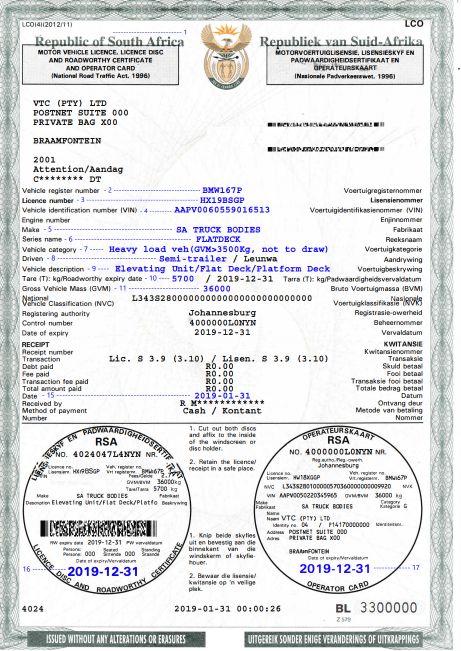
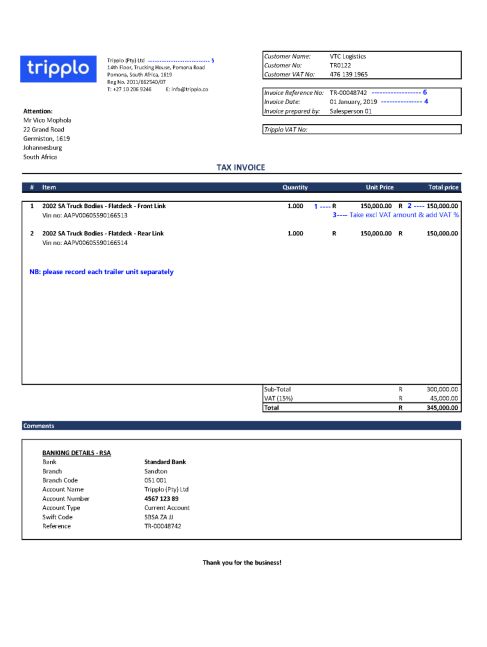
Step 2: Follow the steps highlighted in the screenshots [Figure 5 and Figure 6] to add the required information
Step 4: Click Save
Step 5: Now you will see a list of the information added in the alerts/notification dashboard
FIGURE 5:
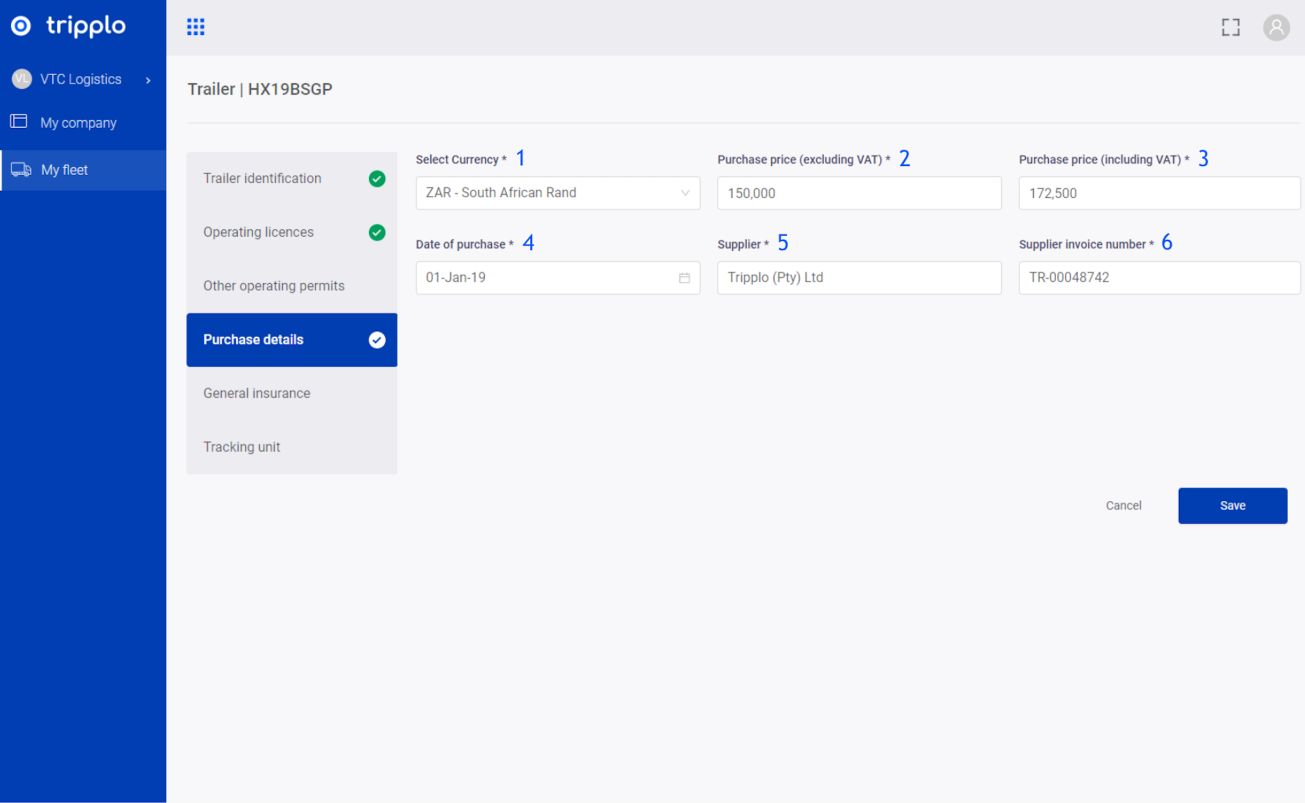
FIGURE 6:
5.General Insurance
Step 1: On the top right corner, click edit
Step 2:In left panel on the form, click a tab named “General Insurance”.
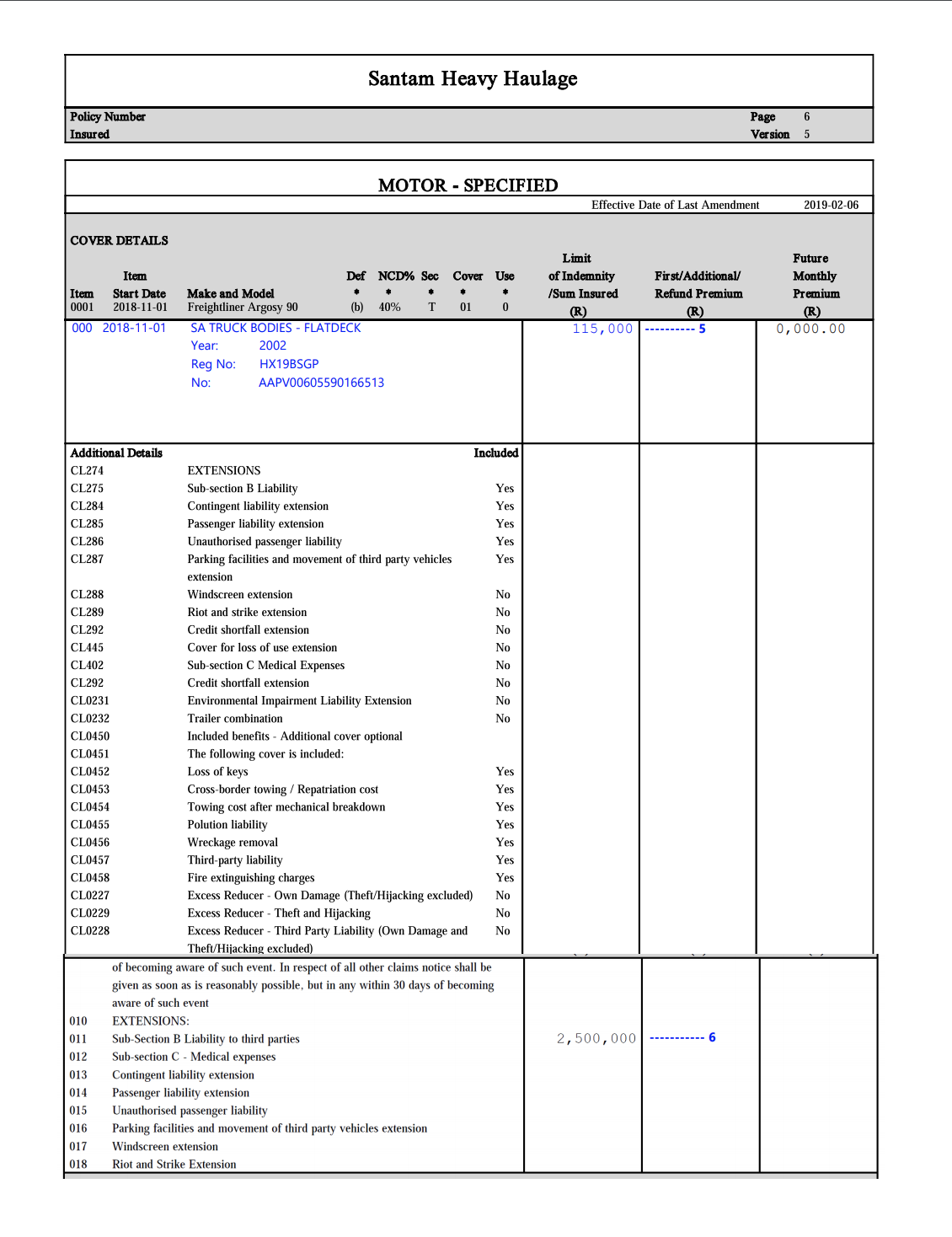
Step 3: Follow the steps highlighted in the screenshots [Figure 7, Figure 8 and Figure 9] to add the required information
Step 4: Click Save
Step 5: Now you will see a list of the information added in the alerts/notification dashboard
FIGURE 7:
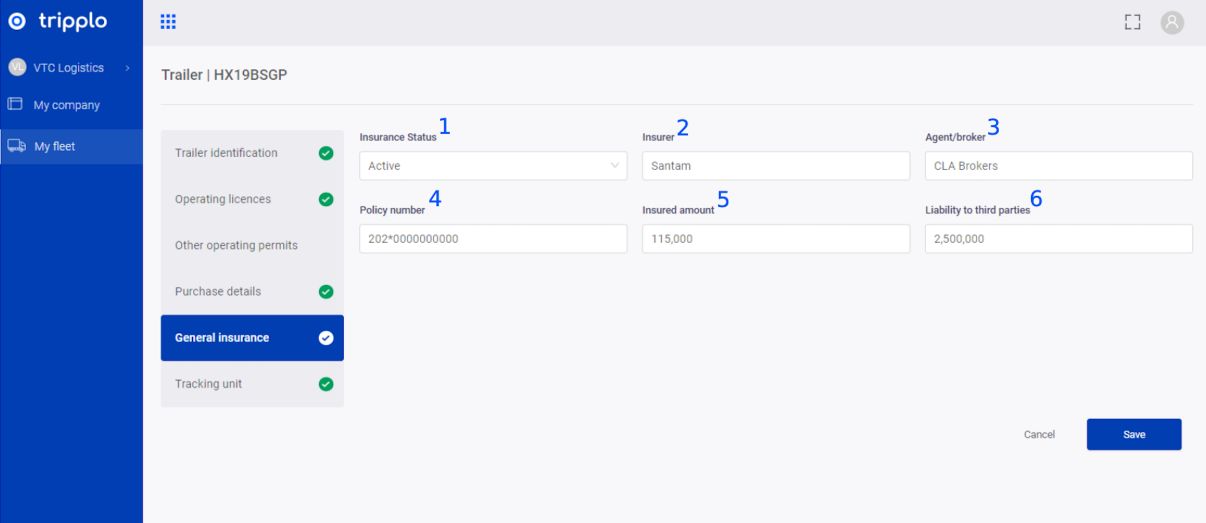
FIGURE 8:
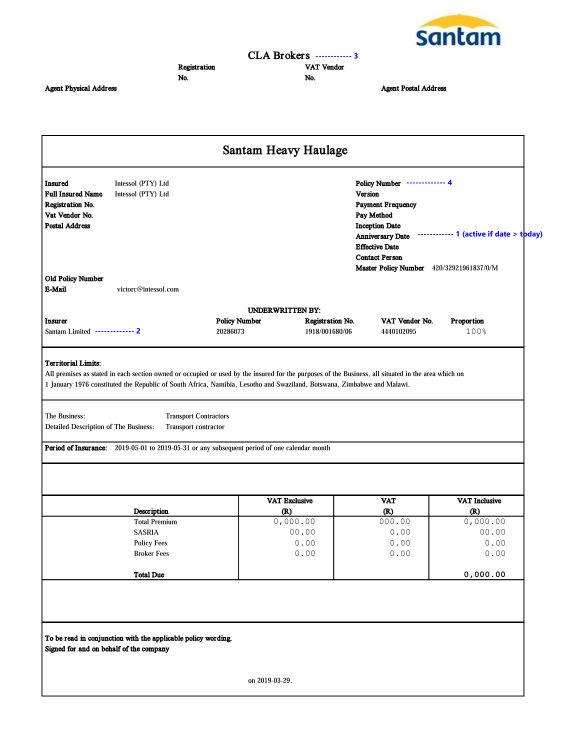
FIGURE 9:
6.Tracking Unit
Step 1: On the top right corner, click edit
Step 2:In left panel on the form, click a tab named “Tracking Unit”.
Step 3: Follow the steps highlighted in the screenshots [Figure 10 and Figure 11] to add the required information
Step 4: Click Save
Step 5: Now you will see a list of the information added in the alerts/notification dashboard
FIGURE 10:
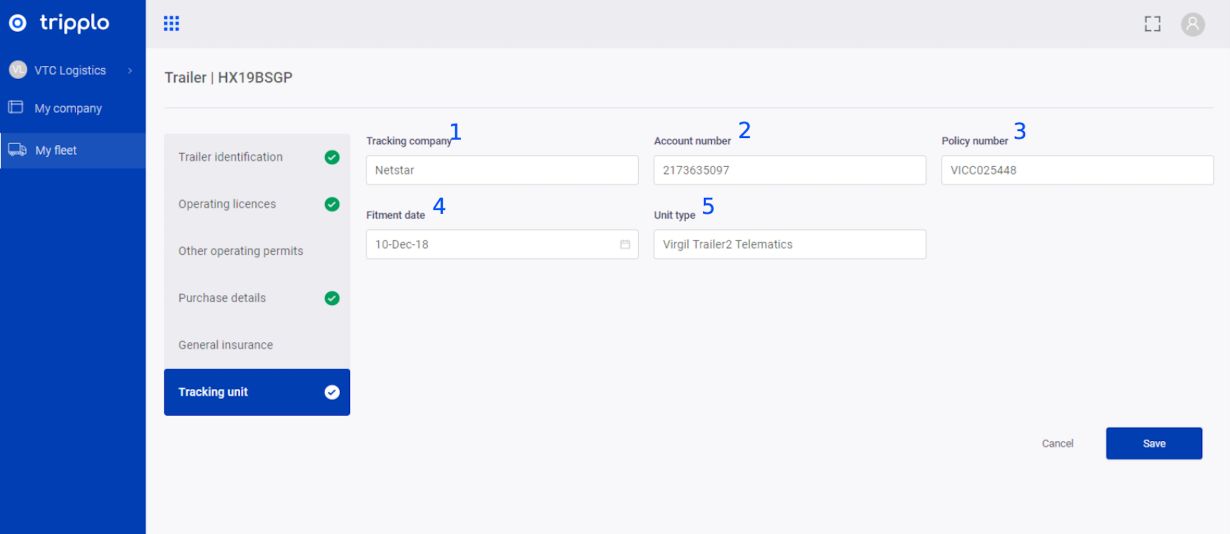
FIGURE 11: